Organisations that manage Microsoft Edge through Intune, at some point, could have configured the DefaultGeolocationSetting policy.
It gives you three options: allow geolocation for all sites, block it for all sites, or prompt the user every time. That’s been the extent of the available control for a while: a single global switch with no per-site granularity.
The March 2026 Intune service release added two new settings to the Windows Settings Catalog that change this: Allow precise geolocation on these sites and Block geolocation on these sites. Both are Microsoft Edge policies surfaced through the Catalog under Microsoft Edge > Content settings.
They allow you to define per-URL exceptions on top of the global default, which is what most real-world deployments actually need.
Why the global setting isn’t enough
If you manage devices used for a mix of internal web applications and general internet browsing, the global setting forces you into an uncomfortable choice.
If you block geolocation entirely, you risk breaking internal applications that legitimately depend on location (like warehouse management tools, field service portals, maps integrations inside an intranet). If you allow it globally, however, you give every external site the ability to prompt the user for location access with no admin control over which sites can actually get it.
In practice, many tenant admins compromise with AskGeolocation (the default) which prompts the user each time) and leave it at that. This means the user makes the decision, not the policy. In a regulated environment or one with a strict data handling posture, that’s not always acceptable.
The two new per-site settings solve this properly.
What the settings actually do
Allow precise geolocation on these sites
Policy name: PreciseGeolocationAllowedForUrls
Microsoft’s documentation describes it as follows: this policy lets you specify a list of URL patterns for sites that are allowed to access the user’s high-accuracy geolocation without prompting for permission. If the policy is not configured, the DefaultGeolocationSetting value applies, or the user’s personal setting is used.
Reference: https://learn.microsoft.com/en-us/deployedge/microsoft-edge-browser-policies/precisegeolocationallowedforurls
The key phrase here is without prompting: the site gets location access with no browser prompt shown to the user. That makes it appropriate only for internal applications you explicitly trust.
Block geolocation on these sites
Policy name: GeolocationBlockedForUrls
This policy defines a list of URL patterns for sites that are blocked from accessing the user’s geolocation. According to the documentation, these sites also cannot prompt the user for location permissions at all: the permission request is suppressed entirely.
Reference: https://learn.microsoft.com/en-us/deployedge/microsoft-edge-browser-policies/geolocationblockedforurls
If neither policy is configured for a given site, DefaultGeolocationSetting applies as the fallback.
The policy hierarchy
It is worth being explicit about the order of precedence, as misconfiguration here produces unexpected behaviour:
- GeolocationBlockedForUrls takes effect first: if a site matches the block list, location access is denied regardless of any other setting
- PreciseGeolocationAllowedForUrls applies next: if a site matches the allow list and is not in the block list, location is granted silently
- DefaultGeolocationSetting applies to all sites not explicitly matched by either list
This means if you add the same URL pattern to both lists, the block wins.
Where to configure this in Intune
These settings are only available through the Settings Catalog, not through device restriction templates or the legacy Administrative Templates profile type.
Navigate to:
Devices > Configuration profiles > Create profile
Platform: Windows 10 and later
Profile type: Settings catalog
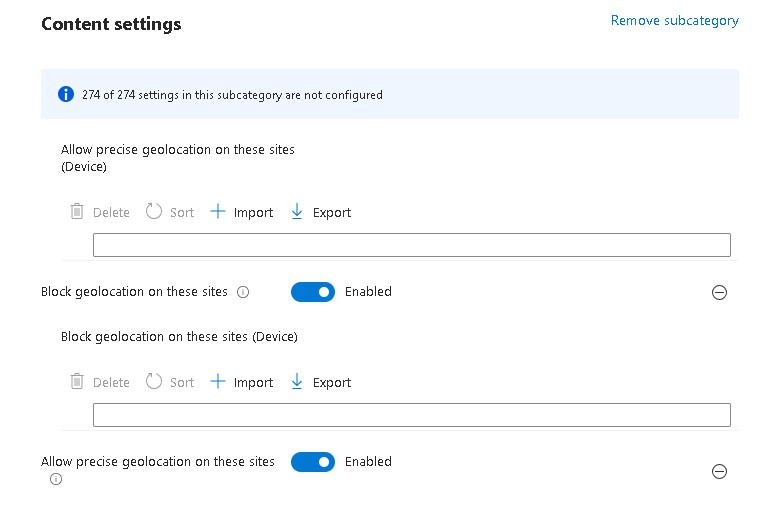
In the Settings picker, search for Microsoft Edge, then expand Content settings. You will find:
Allow precise geolocation on these sites

Block geolocation on these sites

Both accept a list of URL patterns. Add one pattern per entry.
URL pattern syntax
Both settings use Edge’s standard URL filter format. There are a few important details to note:
- Wildcards () are supported — [.]contoso.com matches all subdomains of contoso.com
- Patterns must include the scheme — https://maps.contoso.com is valid; maps.contoso.com is not
- You cannot use * as a standalone entry to match all URLs. That is what DefaultGeolocationSetting is for
- Path components are supported: https://app.contoso.com/fieldops will match that path but not https://app.contoso.com/hr
Practical scenarios
Block by default, allow internal tools
Set DefaultGeolocationSetting to BlockGeolocation and add your internal applications to the allow list. External sites are blocked entirely; internal applications get silent access without any user prompt.
Allow by default, block specific external services
Leave the default as-is and add specific third-party SaaS tools to the block list. Everything else continues to prompt the user as normal.
Important details to note
- These policies apply to Microsoft Edge only. Chrome, Firefox, and embedded WebViews from other applications are not affected
- When searching for these settings in the Settings Catalog, you will see two versions of each: one without a suffix and one labelled (User). The difference is where the policy lands in the Windows registry. The device-scoped version (no suffix) writes to HKEY_LOCAL_MACHINE (HKLM) and applies to the machine regardless of who is signed in. The (User) version writes to HKEY_CURRENT_USER (HKCU) and follows the user profile across enrolled devices. For geolocation control, the device-scoped version is almost always the right choice (you want the allow and block lists enforced machine-wide, not variable depending on which user is active). If both scopes are configured for the same setting, user scope takes precedence over device scope.
- The Windows OS location service must be enabled for any of this to function. if the device-level location service is off (controlled via Privacy > Turn off location in the Settings Catalog), Edge will not be able to resolve geolocation regardless of these policies
The settings only appear in the Settings Catalog as of the March 2026 service release. If you do not see them, your tenant may not yet have the update. Microsoft is rolling this out gradually through late March 2026
The allow list grants access without prompting. Be deliberate about what goes on it