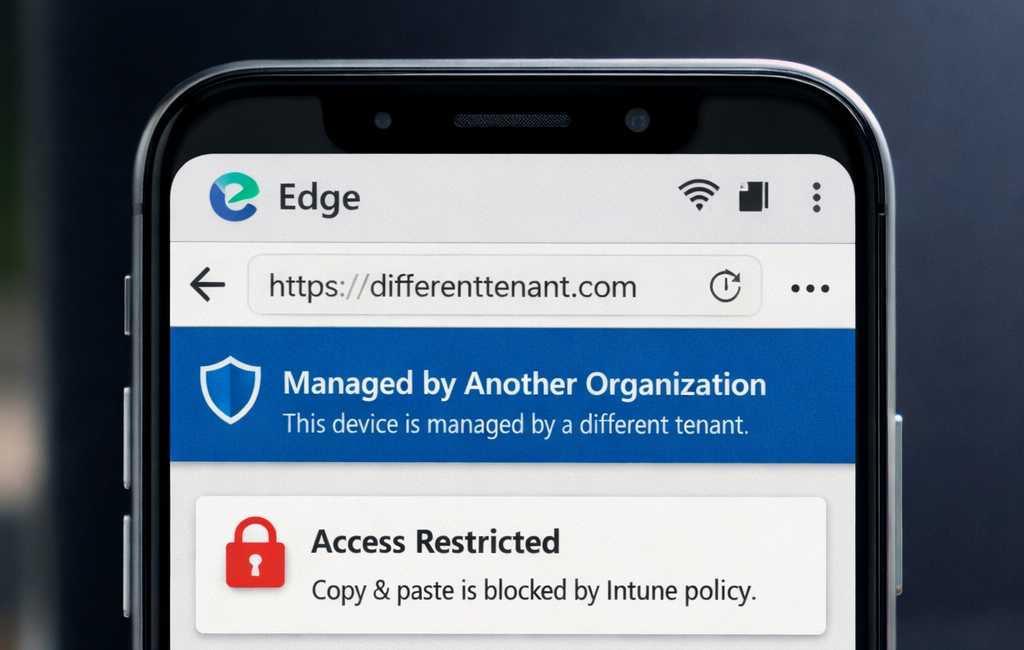
During a recent Intune and MAM rollout, I ran into a configuration problem that took longer to resolve than it should have. The requirement was straightforward: present a Terms of Use document to mobile users before they could access corporate resources, with separate ToU documents for MAM (unmanaged BYOD) and MDM (enrolled) devices. What looked like a clean CA policy design turned out to have a fundamental flaw rooted in how Entra ID evaluates device attributes for unmanaged devices.
This post covers why separate Terms of Use documents matter, what goes wrong when you try to use device filters to differentiate them, and the approach that actually works.
Why two separate documents
MDM enrolment gives the organisation broad device-level control: compliance policy enforcement, configuration profiles, certificate deployment, and full device wipe. A user accepting the MDM ToU is acknowledging that level of management over their device.
MAM gives the organisation control only within the boundary of managed apps. It can enforce PIN requirements, restrict copy/paste between corporate and personal apps, encrypt corporate data at rest within those apps, and selectively wipe corporate data from managed apps only. It cannot touch anything outside that boundary. A user on a personal device accepting a MAM ToU is acknowledging a fundamentally different and more limited set of organisational rights.
Presenting a single ToU that conflates these two models (or presenting the MDM document to a MAM user) is inaccurate regardless of jurisdiction. The user would be consenting to management capabilities that do not apply to their situation. In regulated industries or any environment where the ToU acceptance record could be scrutinised, that matters.
How Entra ID Delivers the Terms of Use
The Terms of Use feature in Microsoft Entra ID works as a Grant control within a Conditional Access policy. When a user authenticates and the CA policy evaluates, the Grant control checks whether the user has an active acceptance record for the specified ToU document.
The ToU document itself is a PDF uploaded directly to Entra ID under Identity Governance, Terms of Use. Each document is a separate ToU policy object, and each can be assigned to one or more CA policies independently.
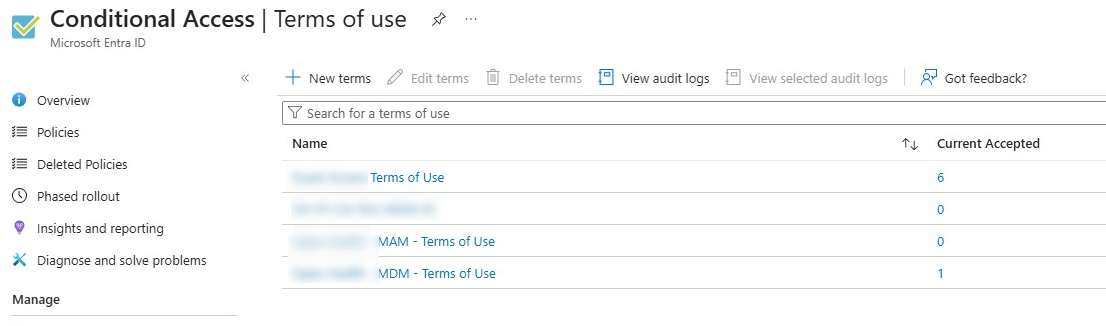
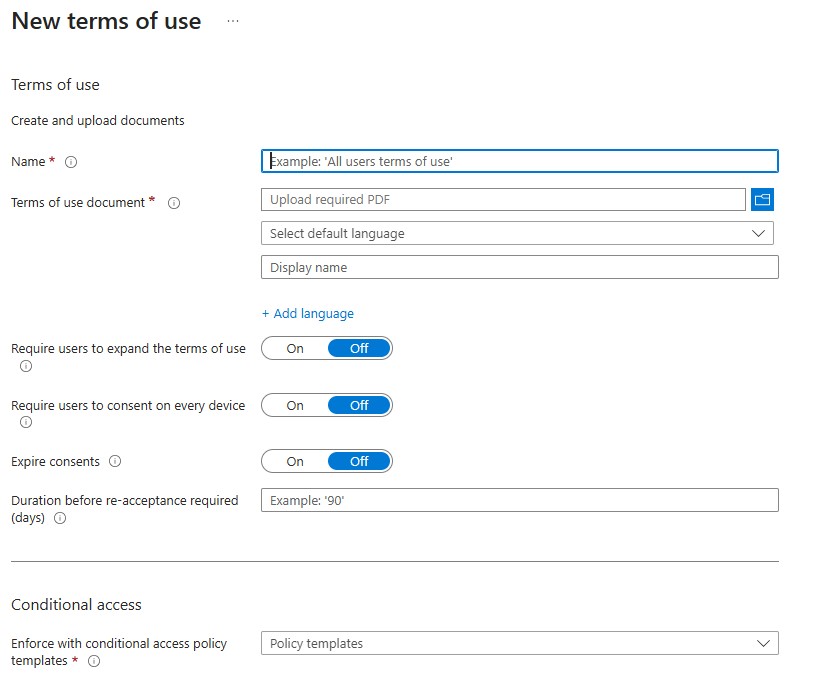
The ToU configuration allows the administrator to decide user must expand the document to accept it and if, once accepted, the record is stored in Entra for all the user’s devices (so they are not prompted again) or if the ToU has to be accepted once for each device.
For this specific deployment I opted to ask the consent once per user.
This is what makes the MAM and MDM split possible: two separate PDF documents, two separate ToU policy objects, two separate CA policies with different conditions, each granting access only after the appropriate document has been accepted.
One practical point worth noting: because the ToU is presented in a browser window, the Client apps condition in the CA policy matters. The authentication flow for MAM-enrolled apps on mobile devices routes through a browser context for the initial sign-in, which is why Browser must be included alongside Mobile apps and desktop clients in the Client apps condition. Without it, the ToU prompt may never appear.
The Configuration Problem
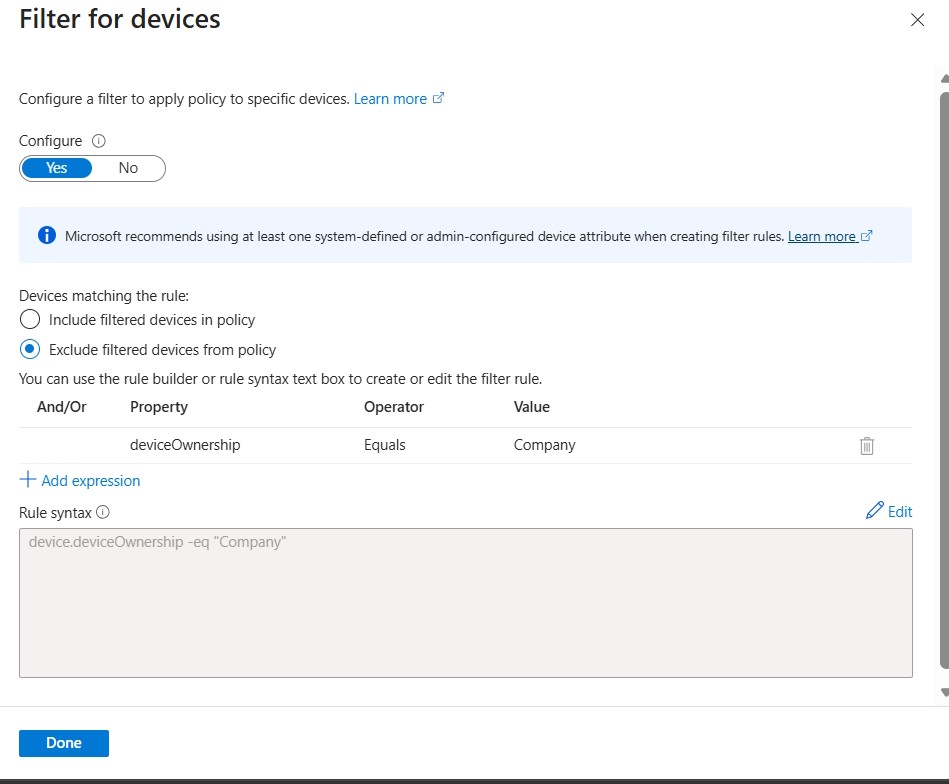
The natural instinct when building the CA policy for MAM ToU is to use the device filter condition to target personal devices:
device.deviceOwnership -eq "Personal"Set to Include filtered devices, this looks correct on paper. The problem is that it only works for devices that have an object in Entra ID. An MDM-enrolled device has a full device record, and the deviceOwnership attribute is populated. A BYOD device using MAM, with no Intune enrolment, has no Entra ID device object at all.
When Entra ID evaluates the CA policy for a MAM user, it cannot find a device record to match the filter against. The policy evaluates as not applicable, the Grant control never fires, and the user passes through without seeing the ToU.
There are important details to note here:
- The device platform condition (Android, iOS) still works for MAM users because it is evaluated from the authentication request itself, not from a device record.
- The client apps condition also works for the same reason.
- Only conditions that depend on a device object in Entra ID fail for unmanaged MAM devices, and
deviceOwnershipis one of those.
This is not a bug. It is an architectural reality: MAM is explicitly designed to work without device registration, and Entra ID has no device object to inspect.
Why You Cannot Use a Single User Group to Differentiate
The logical follow-up question is whether you can solve this at the assignment level instead of the filter level. The answer, unfortunately, is no, at least not cleanly.
Microsoft’s own guidance does not prescribe maintaining separate user groups for MAM and MDM users. In practice, most organisations want a single group for mobile users and rely on device state to route them to the appropriate policy. The problem is that routing by device state requires evaluating device attributes, which brings you back to the same limitation for unmanaged devices.
If you apply both ToU CA policies to the same user group with no differentiation, an MDM-enrolled user will be prompted to accept both the MAM ToU and the MDM ToU. That is not necessarily a security problem, but it is a poor user experience and arguably a transparency issue: you are presenting a MAM-specific document to a user on a managed device.
What About Using App Protection Policy as the Differentiator?
One approach sometimes suggested is to use the Grant control rather than device attributes to differentiate MAM from MDM. The idea is to add Require app protection policy to the MAM ToU CA policy alongside the ToU grant, set to require all controls. In theory, only MAM devices satisfy the APP grant, while MDM devices satisfy a separate compliant device grant, giving you mutual exclusivity without any device group logic.
This works, but only under a specific condition: MDM devices must not also have app protection policies applied to them. If your deployment applies APP to both MAM and MDM devices (which is a valid and increasingly common approach, particularly when you want consistent app-level controls regardless of enrolment state) then both device types satisfy the APP grant and the differentiator disappears entirely. MDM users would still be prompted for the MAM ToU.
In that scenario, the APP-as-differentiator approach does not hold, and you need an alternative.
The Solution: Exclude a Dynamic MDM Device Group
The approach that works regardless of your APP deployment model is to flip the exclusion logic. Rather than trying to include unmanaged devices (which have no device object), exclude managed ones.
Step 1: Create a dynamic device group in Entra ID
Create a new dynamic device group with the following membership rule:
(device.managementType -eq "MDM")This group will automatically contain all Intune MDM-enrolled devices. Because these devices have Entra ID objects with populated attributes, the dynamic rule evaluates correctly.
Step 2: Configure the MAM ToU CA policy
In the CA policy for the MAM Terms of Use:
- Users: your standard mobile user group (same group used for MDM)
- Target resources: All resources (formerly All cloud apps)
- Device platforms: Android, iOS
- Client apps: Mobile apps and desktop clients, Browser
- Filter for devices: Remove it entirely
- Assignments, Exclude: Add the dynamic MDM device group created above
- Grant: MAM Terms of Use document
Step 3: Configure the MDM ToU CA policy
The MDM policy does not need any device group exclusion. MDM devices are positively identified by their Entra device object, so a device filter works correctly here:
device.deviceOwnership -eq "Company"Set to Include filtered devices.
Why Terms of Use Matter: UK, Europe, and the US
Before getting into the technical configuration, it is worth understanding why a ToU is worth implementing properly rather than treating it as a checkbox. The legal context differs by region, but the common thread is transparency: users need to know what the organisation can and cannot do on their device before they are granted access.
United Kingdom
In the UK, most employee monitoring involves processing personal data, which triggers the UK GDPR and Data Protection Act 2018. Organisations must identify a lawful basis, be transparent with staff through clear notices and policies, and for higher-risk or large-scale monitoring, carry out a Data Protection Impact Assessment.
For BYOD specifically, employees should sign to show they understand and accept the BYOD terms, and this should never be hidden in fine print. A ToU enforced via Conditional Access gives you a documented, timestamped record of that acceptance per user, per device type. This is precisely what you need if the ICO ever comes knocking.
Europe
Across the EU, the same GDPR framework applies, but enforcement culture and the presence of Works Councils in many member states add an additional layer of complexity. In Germany, France, the Netherlands, and several other countries, Works Councils have co-determination rights over the introduction of technical systems that monitor employee behaviour. Deploying MDM on personal devices without Works Council agreement is a significant legal exposure. A MAM-specific ToU (clearly scoped to app-level management with no device-wide monitoring) is often a prerequisite for getting Works Council sign-off on a BYOD programme at all. The distinction between what MAM does and what MDM does is not just a technical detail in those environments; it is a legal boundary.
United States
In the US, there is no single federal equivalent to GDPR, but the principle of transparency around BYOD still carries legal weight. Organisations typically rely on acceptable use policies and BYOD agreements to establish consent for data access and remote wipe capabilities. The key distinction matters here too: a MAM ToU should explicitly state that the organisation manages only corporate data within specific apps and has no visibility into personal content on the device. An MDM ToU, by contrast, covers broader device management rights including full device wipe. Conflating the two (or presenting a single generic document regardless of device type) creates ambiguity that could complicate both employment disputes and e-discovery situations.
Important Details
There are a few operational points worth keeping in mind before you switch the policies from Report-only to On:
- Dynamic group evaluation latency. Dynamic group membership in Entra ID is not instantaneous. When a device is newly enrolled in MDM, there is a window (typically a few minutes, but occasionally longer) before the device appears in the dynamic group and the exclusion takes effect. During that window, a freshly enrolled MDM device could still be prompted for the MAM ToU. In most production deployments this is acceptable, but it is worth communicating to your helpdesk so they are not surprised by reports of MDM users seeing the MAM document immediately after enrolment.
- Validate in Report-only first. Use the What If tool in Entra Conditional Access with a known MDM-enrolled device and a known BYOD device to confirm the routing is correct before enabling the policies.
- PDF rendering on mobile. The ToU document must render correctly in a mobile browser. Microsoft recommends a minimum font size of 24pt for mobile-targeted PDFs. A document that fails to render on iOS or Android will result in users dismissing the prompt without reading it, which defeats the purpose entirely.
- Acceptance logs. Entra ID logs each ToU acceptance under Identity Governance, Terms of Use. You can view acceptances per document and revoke individual user acceptances when needed, useful both for re-testing and for cases where the ToU document is updated and re-acceptance is required.
- The 40 ToU limit. Entra ID supports a maximum of 40 Terms of Use documents per tenant. For most organisations this is not a constraint, but worth noting in large or multi-entity environments.
Conclusion
The device filter in Conditional Access is a useful tool, but it has a hard boundary: it only works when the device has an object in Entra ID. For MAM scenarios, that is never the case, and any CA policy that relies on a device filter to target or exclude unmanaged devices will behave unexpectedly.
The dynamic MDM device group as an exclusion is the most reliable approach available today. It works with the architecture rather than against it, requires no changes to your user group structure, and handles the case where APP is deployed to both MAM and MDM devices, which rules out the APP-as-differentiator pattern for many real-world deployments.
Getting the ToU routing right is not just a technical exercise. Whether you are operating under UK GDPR, EU data protection law, or a US BYOD policy framework, users need to accept terms that accurately reflect what the organisation can actually do on their device. Presenting the wrong document is not a minor configuration detail; it undermines the legal basis for the acceptance record itself.
I hope this helps if you are working through the same configuration.