At some point in every Microsoft 365 engagement, the access request arrives. Sometimes it is a politely worded email. Sometimes it is a Teams message. The content is almost always the same: the consultant needs Global Administrator. It will only be for the duration of the project. It will be removed when the work is done.
It rarely is.
Global Administrator is not a project role. It is a shortcut. It exists because assigning the correct combination of least-privilege roles across Entra ID, the Defender portal, the Intune admin centre, and the Purview portal takes time and requires knowing which RBAC system controls what. It is easier to click one button and move on.
With this post I try to remove that excuse. For each common engagement type, I have mapped the roles required to do the job: where to assign them, what they cannot do, and which ones should never be permanently assigned to an external account. Nothing more, nothing less.
The Real Reason Global Admin Gets Assigned
Least privilege increases operational friction. Microsoft 365 does not have a single role assignment model. Defender, Purview, Intune, and Exchange each maintain their own RBAC systems, entirely separate from Entra ID. Correctly scoping a consultant means navigating four or five admin portals and assigning roles independently in each one.
Global Administrator removes that friction in one click. That is why it gets assigned, not because anyone genuinely believes the consultant needs access to billing, licence management, and every security setting in the tenant. The shortcut is chosen to avoid the complexity of doing it correctly.
This post exists to make the correct path as low-friction as possible.
Common Anti-Patterns
Before the tables, it is worth naming the mistakes this reference is designed to prevent:
- Assigning Global Administrator to avoid cross-portal RBAC complexity
- Using Security Administrator as a shortcut for Defender, Purview, and Entra work combined
- Forgetting that Defender, Purview, and Intune each have their own RBAC system that Entra roles do not reach
- Leaving roles assigned after the project or engagement phase is complete
- Assigning a read-only Intune custom role without configuring scope tags, then wondering why the consultant can only see part of the tenant
How to Use These Tables
The tables are organised in three sections:
Read-only engagements: assessment, audit, and review work where the consultant must see configuration but must not be able to change anything.
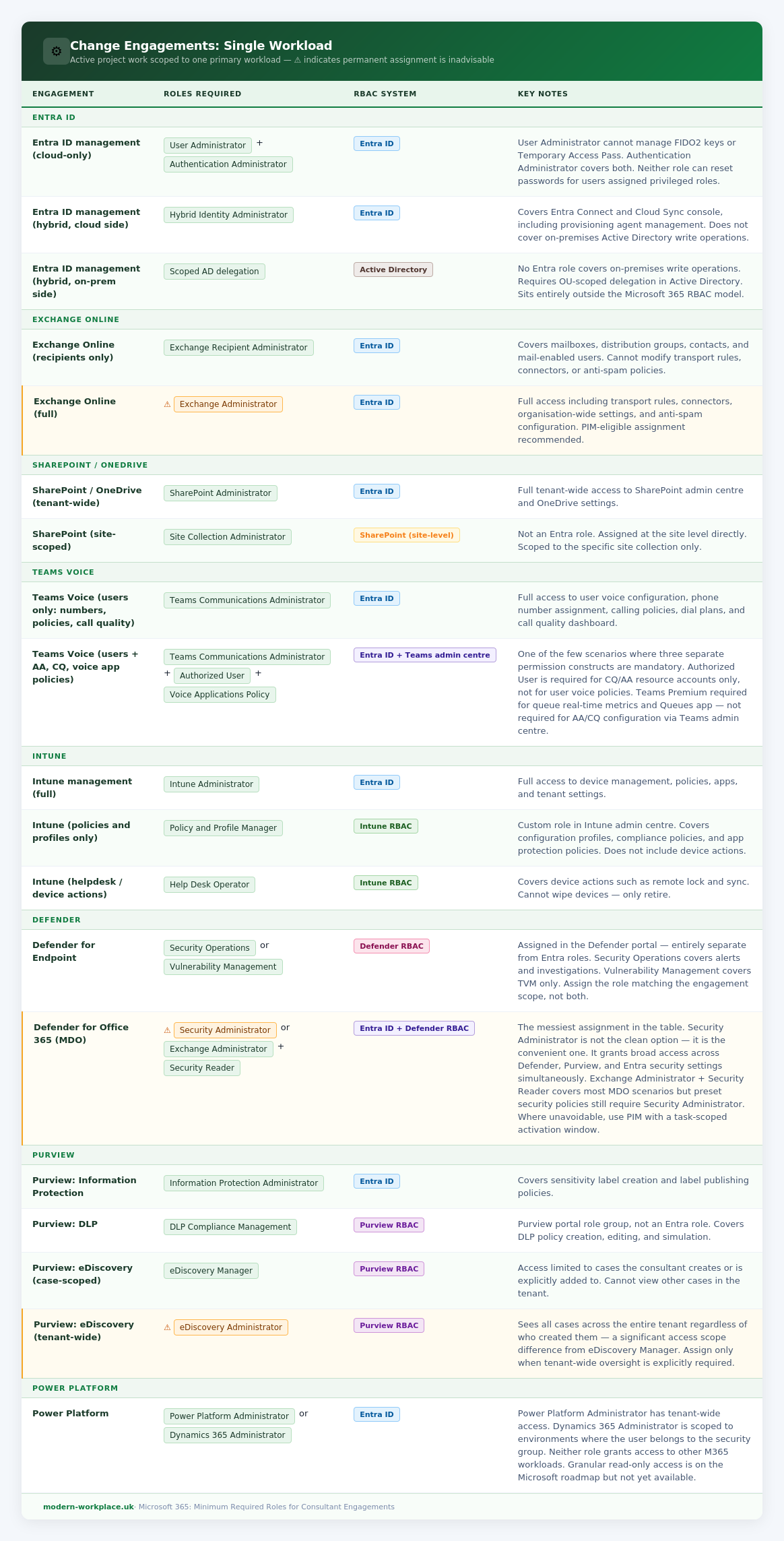
Change engagements (single workload): active project work scoped to one workload.
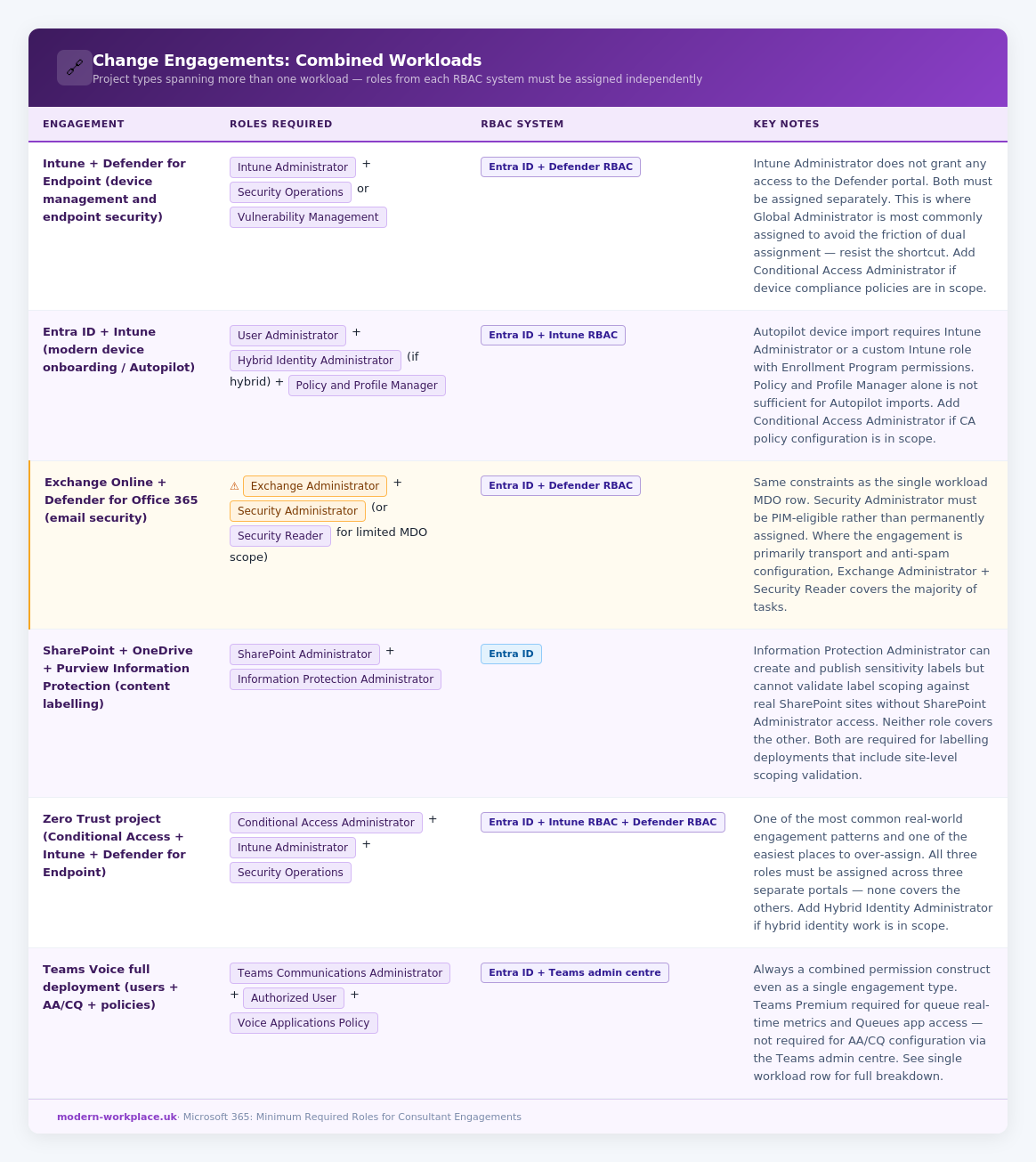
Change engagements (combined workloads): project types that naturally span more than one workload and where the role combination is not obvious.
RBAC systems: Microsoft 365 does not have a single role assignment model. Roles assigned in the Entra admin centre do not automatically grant access inside the Defender portal, the Intune admin centre, or the Purview portal. Where the assignment must be made in a workload-specific RBAC system, the table says so explicitly.
The ⚠️ marker on a role name indicates that permanently assigning this role to an external consultant account is not advisable. These roles should be configured as PIM-eligible with an approval workflow and a time-bound activation window. The final section of this post covers this in more detail.
Key notes column: this is where the practical detail lives. Every row includes at least one limitation or gotcha that is not obvious from the role name and that will affect how the engagement is scoped or executed.
Read-Only Engagements
These roles are appropriate when the engagement scope is assessment, audit, tenant review, or pre-project discovery. The consultant must be able to see configuration but must not be able to make changes.
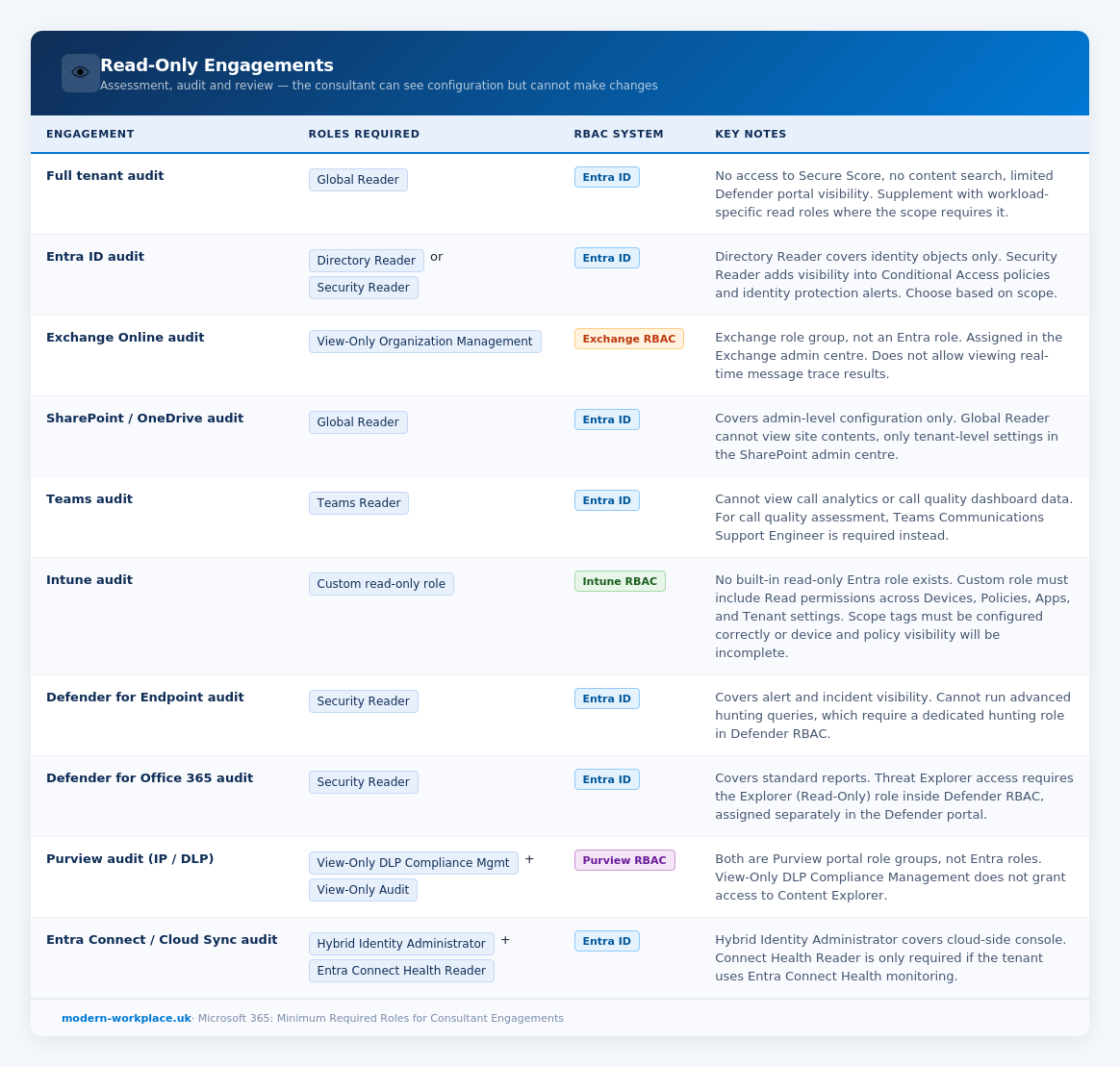
Change Engagements: Single Workload
These role combinations apply to active project work scoped to one primary workload. Where the engagement naturally spans multiple workloads, refer to the combined engagements section below.
Change Engagements: Combined Workloads
These are project types that naturally span more than one workload. The role combinations below represent the minimum required for each. In every case, roles from each workload must be assigned independently. Membership of a role in one RBAC system does not carry over to another.
PIM and Least Privilege: Summary Reference
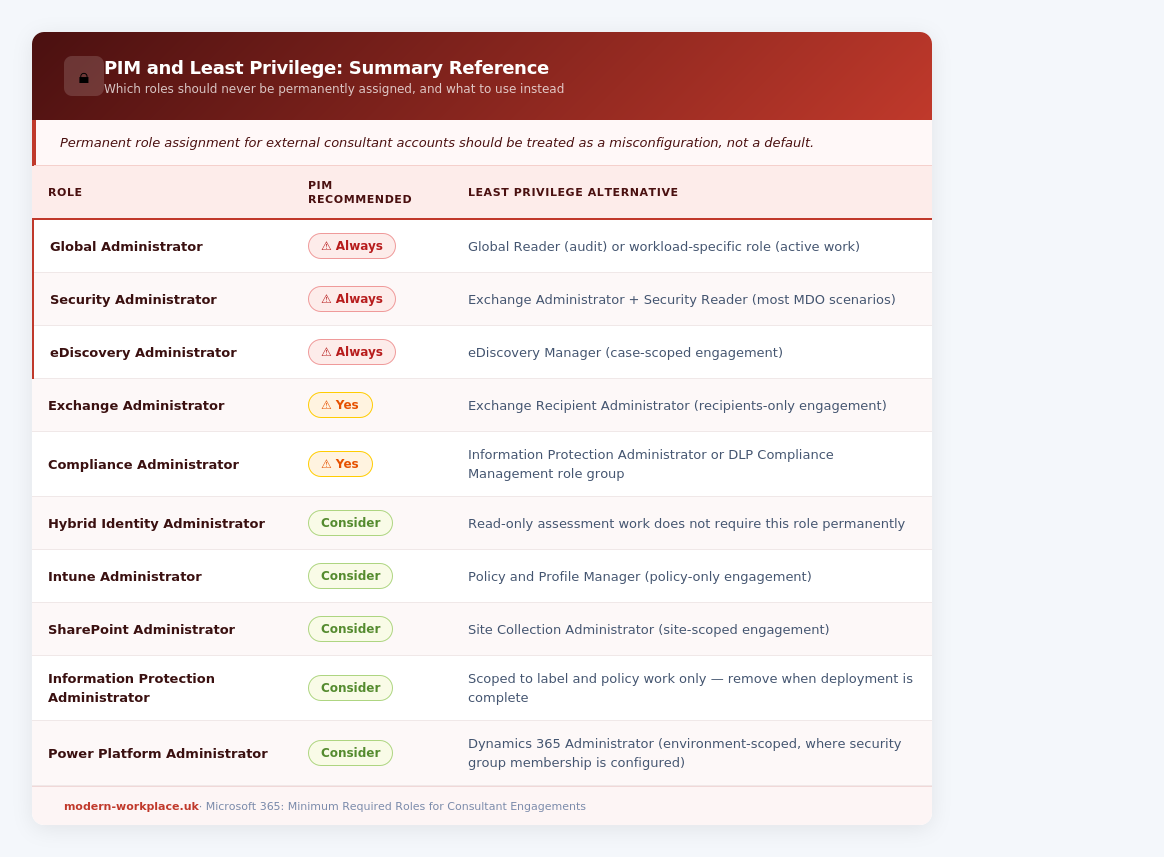
Permanent role assignment for external consultant accounts should be treated as a misconfiguration, not a default. All Entra ID roles in this post are PIM-eligible. The recommended configuration is eligible assignment with an approval workflow and a time-bound activation window matched to the engagement duration or sprint cycle.
For Purview and Intune RBAC roles, which sit outside Entra PIM, time-bound access should be managed by removing the role assignment at the end of the engagement rather than relying on automatic expiry.
A dedicated post on configuring PIM for external consultant accounts, including approval workflow design and activation window policies, is planned as a follow-up to this reference.
Closing Note
I hope this reference is useful the next time you are in that access request conversation. The goal is not to make the consultant’s job harder. It is to give the client’s security team a defensible answer and to ensure that when the engagement is over, removing access is a clean and complete operation rather than a guesswork exercise across six admin portals.