This is a question that comes up regularly in Copilot deployment conversations: can Microsoft 365 Copilot work on files stored on our on-premises file servers? The short answer is yes, it can, but the path to get there has a prerequisite step that most organisations skip, and skipping it creates a data exposure problem the moment indexing starts.
This article is about that prerequisite step, why it matters, and what you need to deploy to address it.
The Situation
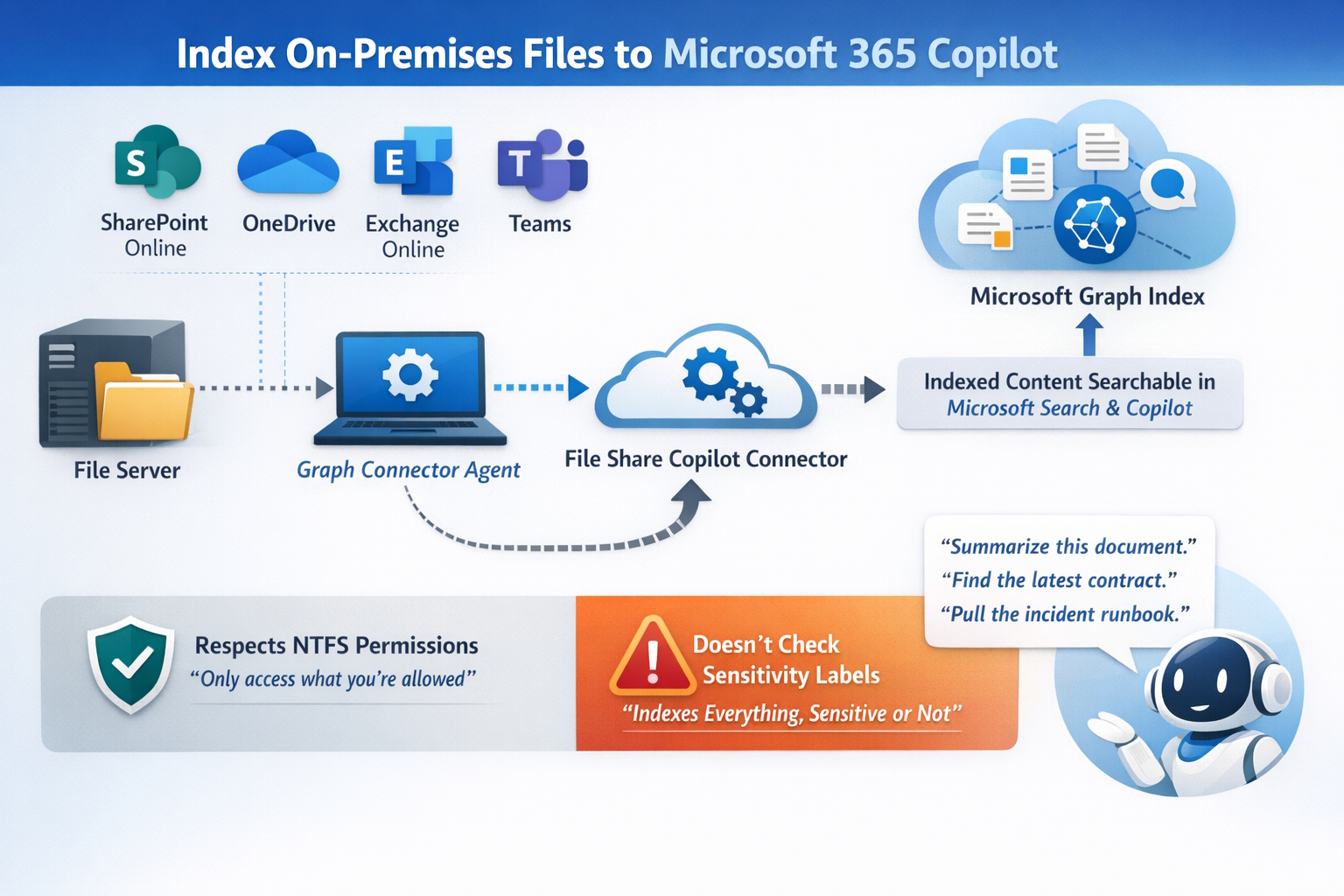
Microsoft 365 Copilot builds its semantic index from Microsoft 365 content: SharePoint Online, OneDrive, Exchange Online, Teams. A file sitting on a Windows file server or a NAS appliance is invisible to it by default.
Microsoft does provide a mechanism to change this. The Microsoft Graph Connector Agent is a lightweight agent you install on-premises, and when paired with the File Share Copilot connector configured in the Microsoft 365 admin center, it indexes your on-premises Windows file share content into Microsoft Graph. From that point, the content becomes searchable via Microsoft Search and accessible to Microsoft 365 Copilot in natural language queries: summarise this document, find the latest contract for this client, pull the relevant runbook for this incident.
The connector respects NTFS permissions. Users only see content they have access to. That part works correctly.
What it does not do is look at sensitivity labels before deciding what to index.
What Actually Happens
When the Graph Connector Agent indexes a file share, it processes every file it can read.
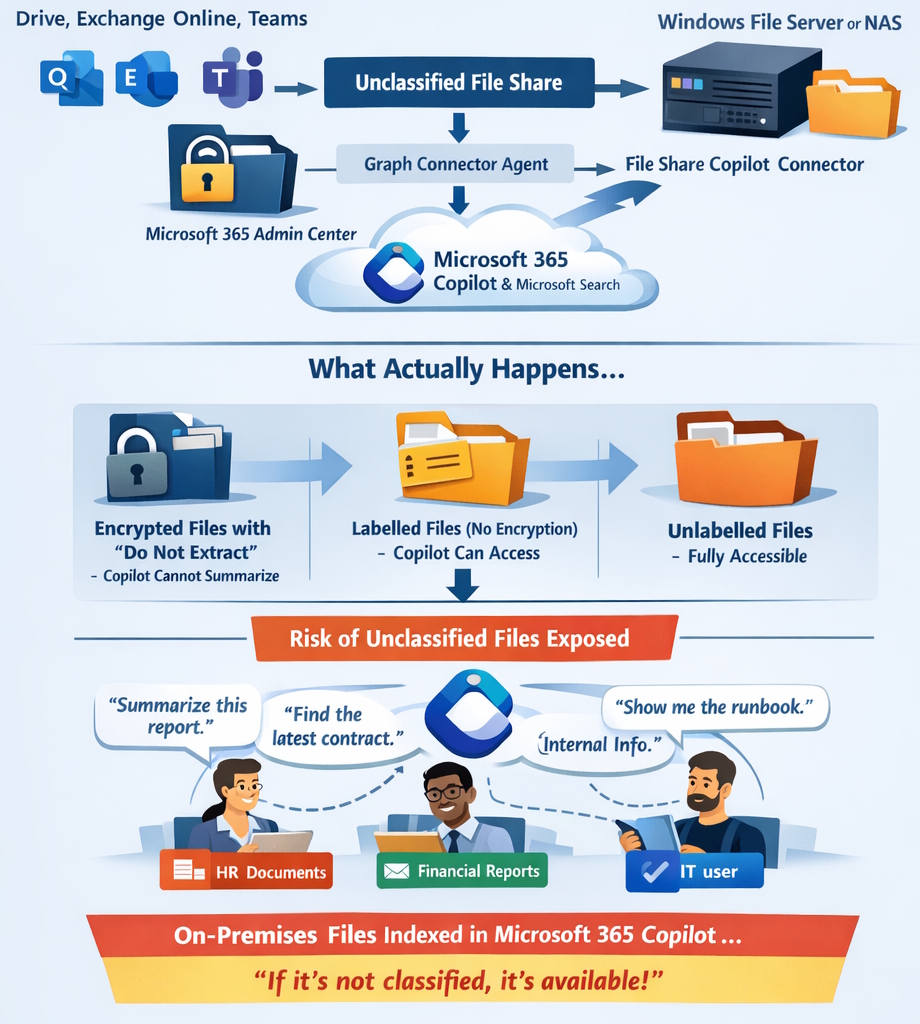
Files that carry a sensitivity label with encryption and without EXTRACT rights are protected and Copilot cannot summarise them at rest. That is the correct behaviour, and it is by design.
The problem is everything else. Files with no sensitivity label carry no such protection. Once they are indexed into Microsoft Graph, Copilot can surface them freely in responses to any user who has NTFS read access. In a typical on-premises file share that has never been through a classification exercise, that is most of the content.
There are important details to understand about how Copilot interacts with labelled content:
- A file labelled and encrypted without EXTRACT rights cannot be summarised by Copilot when at rest in the index
- A file labelled but without encryption is visible to Copilot; the label provides classification context but not access control
- A file with no label at all has no protection and it is treated as unrestricted content
When a user has a file open in an Office app from any location, including a network share, Copilot can use that file’s content in the active session regardless of where it is stored. This is what Microsoft refers to as data in use
The consequence is straightforward: if you connect your on-premises file shares to Microsoft 365 Copilot before classifying their contents, you are making years of unclassified files (contracts, HR documents, financial models, internal communications) usable by anyone with read access and a Copilot licence.
The Agent You Need First
Before deploying the Graph Connector Agent, you need to run the Microsoft Purview Information Protection scanner across your on-premises repositories to discover, classify, and label what is there.
The scanner is a Windows service that connects to SMB and NFS network shares, and to SharePoint Server 2013 through 2019, and applies sensitivity labels according to the policies configured in the Microsoft Purview portal.
It runs in two modes:
Discovery mode: crawls repositories and produces reports showing what files were found and what labels would be applied, without changing anything. This is where you start.
Enforcement mode: applies labels automatically based on your auto-labelling conditions, and can optionally apply encryption to files matching specific criteria.
The scanner is not a real-time intercept. It crawls systematically on a schedule, and on subsequent runs processes only new or modified files unless you trigger a full rescan explicitly. For a first deployment against a file share that has never been classified, expect to run a full discovery pass, review the results with the relevant data owners, refine your label conditions, and then enable enforcement.
Prerequisites
Before the scanner can run, the following must be in place:
- A Windows Server computer to host the scanner service, with internet connectivity to reach the Purview portal, the Rights Management service, and Microsoft Entra ID authentication endpoints
- SQL Server to store the scanner configuration database. SQL Express is supported for testing; production deployments warrant a proper SQL instance
- A service account in Active Directory with read access to all repositories to be scanned, write/modify access where labels will be applied, and AIP super user rights for scanning encrypted files
- A Microsoft Entra app registration for non-interactive authentication, configured via Set-Authentication -AppId -AppSecret -DelegatedUser
- At least one sensitivity label in the Purview portal with auto-labelling conditions defined. Without conditions, the scanner has nothing to evaluate against
- Licensing: all users who access the scanned locations must be licensed, not just the service account. Microsoft 365 E3 covers basic labelling; E5 Compliance is required for auto-labelling and DLP enforcement
Configuration in the Purview Portal
The scanner configuration lives in the Purview portal under Settings → Information Protection → Information protection scanner.
You create a scanner cluster (a named identifier for the scanner instance) then a content scan job where you specify the repositories to scan (UNC paths for file shares, URLs for SharePoint Server libraries), whether to run in discovery or enforcement mode, and whether to enable DLP policy rules.
For DLP enforcement on-premises, you must also create a DLP policy in the Purview portal that includes the On-premises repositories location and associate it with the content scan job. The scanner then handles both sensitivity label application and DLP rule matching in a single scan pass.
Scanner management is handled via PowerShell:
- Start a scan cycle
- Start-Scan
- Check scan status
- Get-ScanStatus
- Force a full rescan of all files
- Start-Scan -Reset
Results report back to the Purview portal every five minutes during an active scan, and are visible in Activity Explorer under File discovered and File labeled event types.
What Changed Recently
A few additions worth noting in recent releases:
- NFS support (Preview): the scanner now supports NFS shares in addition to SMB, extending coverage to Linux file servers and NAS appliances
- Modified By field in CSV reports (v3.1.105.0, January 2025): scan reports now include who last modified each discovered file, which makes data ownership conversations considerably easier when reviewing discovery output
- Advanced Label Based Protection with Endpoint DLP (v3.1.251.0 / v3.1.310.0, April–June 2025): the client now supports label-aware protection in combination with Endpoint DLP policies, including non-native file types via .pfile containers
The Right Sequence
To be explicit about the order of operations, because getting it wrong creates the exposure described at the start:
- Deploy the Purview Information Protection scanner
- Run discovery mode across all file shares intended for Copilot indexing
- Review findings, refine label conditions with data owners
- Enable enforcement mode and let the scanner classify and label the content
- Validate that sensitive content carries the appropriate labels and encryption before the next step
- Deploy the Microsoft Graph Connector Agent and configure the File Share Copilot connector
Step 6 is where Copilot gains access to the on-premises content. Steps 1 through 5 are what ensure that access is safe.
If You Are Still Running the Old AIP Client
One additional complication for environments that deployed Azure Information Protection years ago and never revisited it.
The scanner previously shipped as part of the AIP unified labeling client (a v2 package that reached end of support in April 2024).
The current release is the Microsoft Purview Information Protection client v3, and the v2 client does not upgrade to it automatically. The service names changed, the PowerShell module was renamed from AzureInformationProtection to PurviewInformationProtection, and the scanner database requires an explicit migration step. Installing v3 on top of v2 without following the documented sequence breaks the scanner service.
The migration steps are documented here: Upgrade the Microsoft Purview Information Protection scanner
If your environment is running anything older than v3.x, that is the first thing to resolve — before any of the configuration work above is attempted.
Conclusion
Microsoft 365 Copilot can reach on-premises file shares, but only if you connect it deliberately via the Graph Connector Agent. Before you do that, the content on those shares needs to be classified. Years of unclassified files on a file server become a different kind of problem when a Copilot licence can surface them in natural language responses.
The Purview Information Protection scanner is the tool for that classification work. It is not the most glamorous part of a Copilot deployment, and it requires more infrastructure than people expect: a Windows Server, a SQL instance, a service account, an Entra app registration, and a migration if you are still running the old AIP client. But it is the step that determines whether extending Copilot to your on-premises estate is something you did carefully or something you regret.
I hope this helps when the conversation about Copilot and on-premises files comes up in your next deployment.