With SharePoint Server 2016 and 2019 both reaching end of support on 14 July 2026, a significant number of organisations are currently looking at file server and on-premises content migrations to Microsoft 365.
The conversation usually goes one of two ways: someone reaches for a third-party tool immediately, or someone asks whether Microsoft provides anything native. The answer to the second question is yes and it has improved considerably over the past twelve months.
This article covers what Migration Manager is, what scenarios it handles well, where it runs out of road, and how it compares to the main paid alternatives.
What Is Migration Manager?
Migration Manager is Microsoft’s built-in migration service, accessible directly from the SharePoint Admin Center under Migration center. It’s free, there is no additional licensing cost beyond your existing Microsoft 365 subscription.
It supports migrations from several sources:
- On-premises file shares (Windows file servers, NAS paths accessible via UNC)
- SharePoint Server (2010, 2013, 2016, 2019)
- Cloud sources: Google Drive, Dropbox, Box, Egnyte
For the purposes of this article, the focus is the file share scenario, moving content from on-premises Windows file servers into SharePoint Online, OneDrive for Business, or Teams.
How It Works
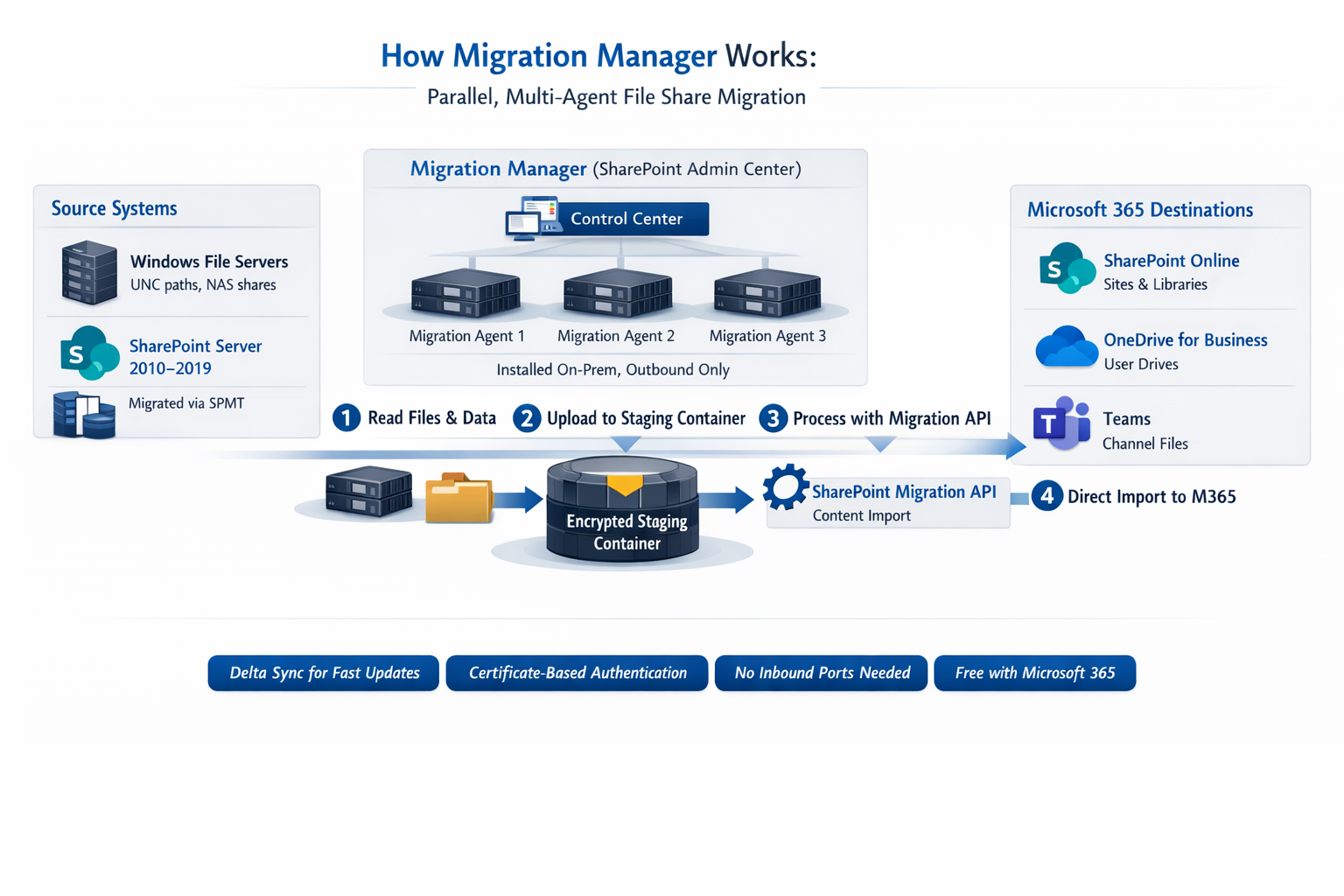
The model is agent-based. You download and install a lightweight agent on each computer or virtual machine you want to connect to Migration Manager. The agent runs as a service and authenticates to both your Microsoft 365 destination and your on-premises source. https://learn.microsoft.com/en-us/sharepointmigration/mm-get-started
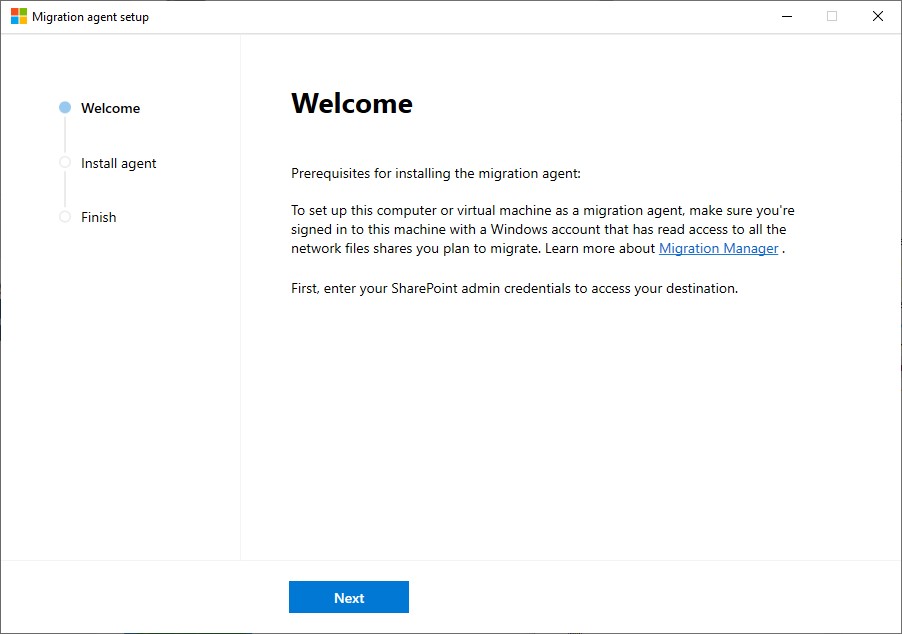
Once an agent is installed and registered, tasks are assigned to it from the SharePoint Admin Center. You specify a UNC source path and a destination (a SharePoint site, a OneDrive account, or a Teams channel). Tasks are automatically distributed to one of the available configured agents. Microsoft Learn
The agent handles the upload to a temporary Azure container. From there, the SharePoint migration API imports the content directly into the destination. The intermediate container is encrypted using AES-256-CBC and the container key is valid for three days. Microsoft purges the container within 30–90 days of creation.
There are important details to note about agent deployment:
- The agent credentials require Windows read access to the source file shares and SharePoint Administrator access to the destination
- The agent does not open any inbound ports; all connections are outbound
- The agent automatically updates to the latest version by default Microsoft Learn
- Third-party MFA is not supported; Microsoft MFA is
When to Use Migration Manager
Migration Manager is the right tool in the following scenarios:
- File server to SharePoint Online. Conventional folder structures with no complex permission inheritance. Supports files up to 250 GB, pre-migration scans, file exclusion filters, and agent grouping for performance.
- Home drives to OneDrive for Business. Per-user home directories (H: drives) can be migrated directly to individual OneDrive accounts. Destination type — SharePoint site, OneDrive, or Teams — is selected at task level. Bulk mapping via CSV works well for larger user populations.
- Multiple file shares in parallel. Agents installed on multiple servers or VMs receive tasks automatically. Migration volume scales linearly with agent count.
- No tooling budget. Free with any Microsoft 365 subscription. A reasonable choice where complexity is low and the project is a one-off.
- Strict data residency requirements. Custom Azure storage can be configured as the temporary staging location, replacing the default shared Microsoft container. Relevant for regulated industries.
Recent Improvements Worth Knowing
Several changes since early 2025 have meaningfully improved the tool:
- Certificate Based Authentication (March 2025). Migration Manager now allows users to use Azure App Registrations with certificate authentication as the identity model for File Share migration. Microsoft Learn This eliminates the previous requirement for a service account with a stored password, which was a friction point in environments with strict credential policies.
- Delta sync (July 2025). File Share migration now supports delta sync, significantly improving the speed of incremental migrations. Microsoft Learn This is operationally significant — it allows a pre-cutover pass to run well in advance, and then a fast final delta pass immediately before the cutover window. Without delta sync, the entire dataset had to be re-evaluated on each run.
- PowerShell support (November 2025). PowerShell cmdlets are now available to manage file share migration tasks running in Migration Manager and to download scan and migration reports. Microsoft Learn For larger projects involving hundreds of tasks, this removes the need to manage everything through the Admin Center UI.
Is Migration Manager Faster Than Third-Party Tools?
This question comes up regularly, and the honest answer is: it depends on what you are measuring.
All tools (Migration Manager, ShareGate, MigrationWiz) ultimately use the same SharePoint Migration API to import content into the destination. Microsoft throttles that API equally for all callers. Microsoft implemented tighter throttling limits on background apps during weekday daytime hours.
You should expect these apps to achieve limited throughput during these times. However, during evening and weekend hours, the service is ready to process a higher volume of requests. Microsoft Learn There is no fast lane for Microsoft’s own tooling. Opening a support ticket does not lift the throttle.
What differs is how efficiently each tool can feed the API, and this is where the comparison becomes interesting.
When it comes to speed, Migration Manager outperforms ShareGate for raw throughput, which is in part due to its threading capabilities. ShareGate migration speed via desktop commonly stays around 1 to 2 GB an hour in practice, being a client-side application. Migration Manager can run migrations in parallel across multiple agents, which drastically improves time to completion.
ShareGate’s response to this is “Insane Mode”, a setting that uses the Migration API directly, staging content in Azure Blob Storage before import. Throughput in Insane Mode is around 3 to 35 GB per hour C# Corner, with considerable variation depending on file size, number of versions, and file types. Small files with many versions are significantly slower.
BitTitan MigrationWiz takes a different approach. Being a fully cloud-based SaaS product, it processes migrations through BitTitan’s own Azure infrastructure rather than a local agent or desktop application. This means throughput is not constrained by the spec of an on-premises server or VM, but it is still subject to the same SharePoint Migration API throttling as every other tool. MigrationWiz does not publish specific GB/hour figures, and real-world performance varies considerably depending on source accessibility, file count, and API throttling conditions at the time of migration. The practical advantage of the SaaS model is operational simplicity rather than raw speed, there is nothing to install, and migrations can be initiated and monitored remotely without any infrastructure overhead.
In practice, Migration Manager wins on parallelism at scale. Running eight agents across eight VMs processes eight migration tasks simultaneously with minimal configuration. ShareGate can achieve the same result with multiple machine activations, but that requires additional licensed seats and more operational coordination.
The conclusion is not that Migration Manager is inherently faster because it is a Microsoft product. It is that its multi-agent architecture, combined with the delta sync capability introduced in July 2025, makes it genuinely competitive for large file share projects where the bottleneck is volume rather than complexity.
Where Migration Manager Falls Short
There are scenarios where Migration Manager is the wrong tool, and it is worth being direct about them.
- Metadata transformation and mapping. Migration Manager moves files and preserves basic properties. It does not support metadata transformation during migration — remapping columns, restructuring managed metadata, or enriching content types on the way to the destination. ShareGate handles this; Migration Manager does not.
- Reporting depth. The migration reports are functional but limited. Managing incremental runs at scale can become cumbersome for larger or more complex environments, with only minimal customisation, limited reporting, and basic error handling. ShareGate For a project that requires detailed per-file audit trails or error categorisation, the reports will frustrate.
- SharePoint Server with complex structures. If the source is SharePoint Server with custom content types, site columns, InfoPath forms, or Nintex workflows, Migration Manager is not the right tool. This is a SharePoint-to-SharePoint migration rather than a file share scenario, and Quest Content Matrix or ShareGate handles it more reliably.
- No native scheduling. Migration Manager does not have a built-in task scheduler. Running migrations during off-peak hours requires manual intervention or scripting via PowerShell — which is now supported as of November 2025, but adds complexity.
Conclusion
Migration Manager is no longer the minimal tool it was two years ago. Delta sync, Certificate Based Authentication, custom Azure storage, and PowerShell support represent a meaningful progression. For organisations facing the SharePoint Server 2016/2019 end-of-support deadline and looking to migrate file server content to SharePoint Online, OneDrive for Business, or Teams, it is a credible starting point that should be evaluated before committing to a third-party licence.
The decision to move to ShareGate or MigrationWiz should be driven by genuine complexity requirements (metadata transformation, advanced scheduling, deep reporting, or a repeated migration pattern across many clients). Where those requirements don’t exist, paying for a tool is difficult to justify.
I hope this helps frame the tool selection conversation in a more structured way.